
70mai
70mai Co.,LtdAuto & Vehicles
3.2351.00 Reviews
- Version
- 4.5.0
- Installs
- 100.00K
- Age Rating
- Everyone
Screenshots
Our Review of 70mai
 Analysis by Appyee
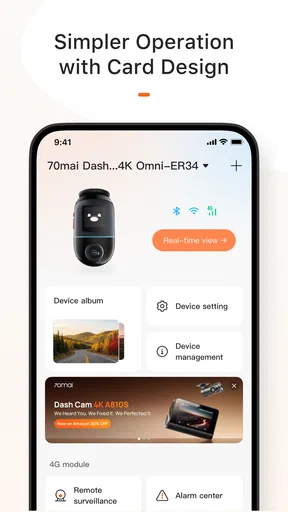
Using a dash camera is supposed to make driving evidence easier, not turn every short trip into a technical project. That is the promise I kept in mind while reviewing 70mai, the free Auto & Vehicles app from 70mai Co.,Ltd. It is designed to work alongside compatible 70mai dash cameras, giving you a phone-based way to manage the camera rather than treating the camera as a completely separate device.
My experience with it is mixed in a useful way. Once the connection is working, the app can make checking recordings and adjusting the camera feel much more convenient than handling a small screen or removing storage every time. The difficult part is often the first connection, and some problems that look like app failures are actually caused by the camera, the phone’s wireless state, or the way the user is trying to access a file.
That makes this a practical tool rather than an essential app for every driver. If you already own a compatible 70mai camera and want a simpler way to review footage, it is worth trying. If you are expecting a general dash-camera manager that works with any brand, this is not the right choice. The app is tied to the 70mai ecosystem, and that relationship shapes both its strengths and its limitations.
Where the first connection usually gets stuck
The most common frustration is not necessarily a broken application. It is the moment when the phone and camera need to communicate directly. A user may open the app, see no useful camera content, and assume the installation has failed. In practice, the camera needs to be powered and ready, the phone needs to be close enough, and the connection process needs to be followed in the order the app expects.
I recommend treating the first setup as a short checklist instead of tapping randomly through menus. Start with the vehicle stationary. Power the camera fully, wait for its normal startup behavior, and keep the phone near the dashboard. If the camera is still starting, repeatedly closing and reopening the app usually adds confusion rather than solving anything.
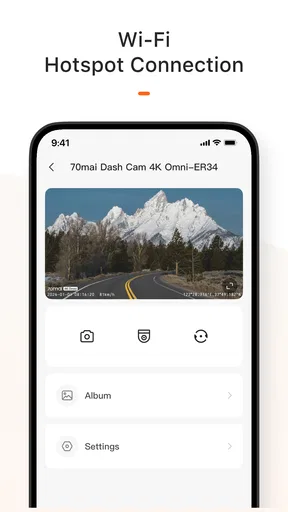
Another point that catches people out is the difference between ordinary internet access and a direct camera connection. A dash camera may create its own local wireless link for viewing or managing recordings. That link can behave differently from the home or mobile network people use every day. Seeing a warning about internet access does not automatically mean the camera connection is useless.
The key setup lesson is to judge the camera connection by whether the app can communicate with the camera, not only by the phone’s internet symbol. This is especially important when you are parked somewhere with weak mobile coverage or when the phone tries to switch away from a local connection because it prefers a network with internet access.
Checks that save time before reinstalling
Before deleting the app, I would check the simple physical details. The camera must have stable power, and the vehicle should not be switched off halfway through pairing. If the camera repeatedly restarts, disappears, or behaves as though it is shutting down, the phone app may be innocent. A loose power connection or an unreliable vehicle socket can make the software appear inconsistent.
It is also sensible to close other apps that may be using the phone’s wireless connection aggressively. Then reopen 70mai and begin the connection process again from a calm starting point. Keeping the phone screen active during setup can help avoid interruptions caused by the phone locking or changing its connection behavior.
Android compatibility matters too. The application requires Android 7.0 or later, so an older phone may not be a suitable test device even if the camera itself is working. On a supported phone, I would still make sure the operating system is behaving normally, the app is updated to version 4.2.0, and there is enough free storage for temporary video handling. Those checks are more useful than assuming a fresh installation will fix every problem.
When the app asks to connect to the camera, I would follow the in-app sequence rather than manually switching between several networks first. Manual switching can leave the phone connected to the wrong source, especially if a remembered network is nearby. If the camera appears in the app but the live view or file area does not load, waiting briefly after the initial connection is preferable to pressing every button repeatedly.
What to prepare before a journey
The best time to test the app is before you need evidence from an incident. I would sit in the parked car, connect the phone, open a recent recording, and confirm that the basic workflow makes sense. This small test answers more useful questions than simply checking whether the app icon opens.
For example, you want to know whether you can reach the camera from your particular phone, whether recordings are visible, and whether you understand how to leave the camera connection without interrupting the camera’s normal operation. Doing this at home or in a driveway gives you time to correct a setup issue without traffic, rain, or an urgent need to preserve a clip.
There is also a practical privacy habit worth adopting. Do not remain connected to the camera while driving just to keep the app open. Configure or inspect what you need while parked, then put the phone away. The app is a convenience for managing the camera, not a reason to handle the phone on the road.
Recovering the workflow when a recording will not open
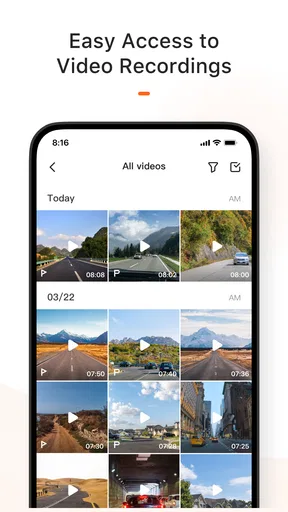
Viewing a clip is a different task from pairing the camera. A connection can be good enough for one function and unreliable for another, particularly when a recording is large or the phone is trying to preview content over a local link. If a video thumbnail appears but playback stalls, I would first return to the camera view, wait a moment, and try one clip rather than selecting several at once.
That slower approach is useful because it separates a file problem from a connection problem. If one recording opens while another does not, the issue may relate to that particular file or to how the camera stored it. If nothing opens, the connection deserves attention first. This simple comparison is more informative than repeatedly tapping the same unavailable clip.
When you need a recording for insurance, a police report, or a personal archive, do not rely on a single viewing attempt. I would locate the relevant moment, review it while parked, and preserve the original on the camera’s storage until I am satisfied that the copy or share process has completed. A preview is not the same thing as a safely retained file.
It is also wise to avoid filling the phone with unnecessary footage. Dash-camera recordings can accumulate quickly, and keeping every ordinary journey makes important clips harder to find. I prefer a simple routine: review only the likely time window, save what matters, and remove duplicate phone copies after checking that the needed version is accessible.
One less obvious trade-off is convenience versus control. Using the app means you can inspect footage without physically handling the camera or its storage, which is helpful in a parked car. However, a phone-based workflow can feel slower when you need many files or long recordings. For a large archive, direct storage handling on a computer may be more practical than transferring everything through a phone.
When restarting helps and when it does not
A full restart can clear a temporary wireless state, but it should be done in a sensible order. I would close 70mai, stop the camera’s connection if the device offers a normal way to do so, restart the phone’s wireless connection, and then power the camera again. After that, I would reconnect once rather than repeating the cycle several times.
If the same failure returns immediately, reinstalling is not my next automatic step. Reinstallation can remove local app state, but it cannot repair a camera that is losing power or a phone that keeps abandoning the camera’s local connection. It can also make you repeat setup without learning what actually went wrong.
A better recovery method is to change one variable at a time. Try the same camera with the same phone after a clean restart. If possible, test the phone while the vehicle is stationary and the camera has stable power. Only then consider whether the app installation itself is the likely source of the trouble.
When the app is not the cause
Dash-camera problems often cross the boundary between software and hardware. A recording that is missing may have been affected by the camera’s power state, storage condition, or the moment the vehicle was switched off. The phone app can display what the camera makes available, but it cannot recreate a file that was never completed or saved correctly.
This is why I would not use 70mai as the only safeguard for important evidence. The app is an access layer, not a replacement for sensible camera maintenance. If a clip matters, check it soon after the event and keep a separate copy once the transfer is complete. Waiting weeks before checking a recording creates unnecessary risk, regardless of how good the app connection seems today.
The same distinction applies to camera settings. If a change does not appear to take effect, give the camera time to receive it and then confirm the result from the camera’s own behavior. A delayed update, a lost connection, or a power interruption can leave the phone showing an old state. I prefer confirmation over assuming that a tap succeeded.
Phone behavior can create misleading symptoms as well. Battery-saving systems may restrict background activity, and wireless management may favor a familiar internet network over the camera. I would temporarily use the phone’s normal connection controls in a parked setting, reconnect deliberately, and restore my usual settings afterward. The important point is to make a controlled test rather than permanently changing unrelated phone settings.
There is also a compatibility question beyond the operating system requirement. The app is intended for 70mai hardware, so owning a different dash-camera brand is a clear reason to skip it. Even within one manufacturer’s range, the useful functions can depend on the camera model. I would therefore treat the camera model as the first compatibility check, not assume that the app alone determines what the experience will be.
How it compares with ordinary alternatives
The usual alternative is to remove the camera’s storage and read it with a computer or card reader. That method is less convenient in a car, but it can be better for reviewing many files, creating backups, and working with longer recordings. It also avoids the temporary friction of a direct phone-to-camera connection.
Another alternative is using a camera without a companion app. That can be simpler for someone who only wants recordings saved automatically and rarely needs to change settings. The trade-off is that checking a clip may require handling storage physically or waiting until a computer is available. 70mai makes more sense for a driver who values quick access from a phone and is willing to learn the connection routine.
Compared with a generic file-management approach, this app feels more focused on the camera relationship. That focus is useful because the phone interface can be more approachable than navigating files manually. It is less attractive for people who want one app to manage equipment from several manufacturers or who prefer a completely offline, computer-first workflow.
Who will get the most from it
I see the strongest fit for a 70mai camera owner who drives regularly and wants occasional access to recordings without removing storage. A commuter checking a minor parking-lot incident, a family reviewing a memorable road trip, or a driver adjusting the camera while parked can all benefit from the phone connection.
A realistic example is a low-speed bump in a supermarket car park. I would park safely, connect the phone to the camera, look for the approximate time, and review the relevant clip before leaving. If the footage is useful, I would preserve it immediately rather than assuming it will remain easy to find later. That workflow is much more convenient than discovering the event at home and searching through every file manually.
The app is less suitable for a professional fleet workflow, a user managing several unrelated camera brands, or someone who expects flawless access while moving. It is also not ideal for a driver who dislikes troubleshooting wireless connections. In those cases, a computer-based storage routine or a different camera ecosystem may be a better match.
The audience rating is Everyone, which fits the app’s practical purpose, and its free price removes a separate purchase decision. It has passed one hundred thousand installs and carries a 3.2 average from roughly nine hundred ratings, alongside more than three hundred written reviews. I read that combination as a sign that the experience is useful for some owners but not uniformly smooth, especially when setup and connection behavior become part of the user’s daily routine.
My practical verdict after using it
70mai is worth installing when you already have compatible 70mai hardware and want a convenient bridge between the camera and your phone. Its best quality is not a flashy feature; it is the ability to make a parked, real-world task—checking a recording or managing the camera—less awkward than handling storage every time.
My reservation is that the app does not remove the need for a reliable camera setup. Stable power, deliberate wireless connection steps, sensible file handling, and early checking of important clips still matter. When those basics are ignored, the app receives blame for problems it cannot solve.
The current version is 4.2.0, and the Android requirement begins at 7.0, so owners of supported phones have a reasonable starting point. I would install it, test the complete recording workflow before an important journey, and keep a computer-based backup habit for valuable footage. For compatible 70mai owners, it is a useful convenience tool—but not a substitute for checking the camera, the storage, and the evidence itself.
Privacy and Permissions
See what permissions an app requests and how it handles your data.
- Location
- approximate location (network-based), precise location (GPS and network-based)
- Photos/Media/Files
- read the contents of your USB storage, modify or delete the contents of your USB storage
- Storage
- read the contents of your USB storage, modify or delete the contents of your USB storage
- Camera
- take pictures and videos
- Microphone
- record audio
- Wi-Fi connection information
- view Wi-Fi connections
- Other
- view network connections, pair with Bluetooth devices, access Bluetooth settings, change network connectivity, allow Wi-Fi Multicast reception, connect and disconnect from Wi-Fi, control flashlight, full network access, control vibration, prevent device from sleeping, modify system settings
Verdict
Strengths of 70mai
- Clear video quality for capturing road incidents
- Supports loop recording without manual file management
- Parking surveillance helps monitor the car while parked
- Mobile app makes footage easy to review and share
- Wide compatibility with several 70mai dash cam models
Limitations of 70mai
- Some advanced features require optional hardware accessories
- Cloud-related functions may vary by region or camera model
- Long recordings can quickly consume phone storage when downloaded
- App connection may be unreliable in areas with wireless interference
- Privacy concerns may arise from recording roads, people, and vehicles
Similar Picks in This Category
View All
Android Auto
Google LLC4.1

maxim — order a taxi & food
PT. SITO4.7

Штрафы ГИБДД: проверка с фото
Pays LLC – Штрафы ГИБДД4.7

Номерограм – проверка авто
Авто Ассист4.8

Дром Авто
Дром4.9

Frequently Asked Questions
What is 70mai, and what can the app do?
70mai is a companion app for compatible 70mai dash cameras and vehicle accessories. After pairing your phone with the camera, you can view a live preview, review and download recorded clips, adjust supported settings, update firmware, and manage connected devices. The exact features depend on your dash cam model, camera configuration, and phone permissions.
How do I connect the 70mai app to my dash cam?
To connect, install the app, create or sign in to an account if requested, enable Wi-Fi and Bluetooth permissions, and follow the in-app pairing instructions for your camera. Your phone normally connects to the dash cam’s built-in Wi-Fi rather than mobile data. If pairing fails, check that the camera is powered on, nearby, and not connected to another phone.
Does 70mai require an internet connection or mobile data?
Many core functions, such as viewing the camera feed and downloading footage over the dash cam’s local Wi-Fi, can work without an active internet connection. Internet access may still be needed for account services, firmware downloads, cloud-related features, maps, or sharing files online. Downloading videos can also use considerable phone storage, so review your settings before transferring large recordings.
Does the 70mai app support cloud storage and parking monitoring?
Support for cloud storage, parking surveillance, GPS information, and remote features depends on the specific 70mai camera, hardwire kit, region, and subscription or service availability. Some parking functions require the camera to remain connected to constant vehicle power, which should be installed correctly to avoid battery drain. Check your model’s specifications before relying on these features.
Is the 70mai app safe to use, and what permissions does it need?
The app generally needs permissions such as Wi-Fi or local network access, Bluetooth, storage or photos, and sometimes location to discover the camera, transfer recordings, and provide model-specific functions. Review the privacy policy and Android or iOS permission screens before accepting access. Avoid downloading modified versions, and install the app only from an official app store or trusted source.
